
Quick answer: Multi-brand affiliate software needs a testable access model. Give a teammate one brand and a defined affiliate set, then check the same boundary in lists, reports, exports, billing records, adjustments and API responses. A role name or a filtered dashboard is insufficient if the underlying records remain available elsewhere. Scaleo’s Visibility Groups add brand and affiliate scoping to role permissions on Enterprise and Custom iGaming plans; the buying test is whether your actual team structure produces the views you intend.
Your regional affiliate manager handles Brand A. Finance closes payouts for Brands A and B. An agency user should see only the affiliates it manages. All three people can sign in to the same affiliate platform. What, exactly, does each person see when they export a report or open a commission adjustment?
That question gets more difficult after a second brand launches. Affiliates may work across brands, while the people managing them do not have identical access. A report filter can make a screen look tidy without preventing a teammate from selecting another brand in a dropdown, opening a linked record, or exporting a broader result. Permissions have to be checked at the record and action level.
Define the boundary before creating roles
Write down two separate decisions for every internal user: what can this person do? and which brand and affiliate records can they do it to? The first is the role. The second is visibility. An affiliate manager who can edit campaigns may still need to see only one brand. A finance reviewer may see both brands but have no reason to change tracking links.
For an iGaming operator, brand and affiliate are the useful axes. Brand access alone is not always enough: a shared affiliate can promote two brands, and a regional team may own only a subset of partners within one brand. Affiliate access alone can also leak a wider portfolio if reports expose every brand attached to that partner. The access policy must state what happens when a record joins an allowed affiliate to a brand the teammate cannot see.
| Test user | Allowed scope | Expected result |
|---|---|---|
| Brand A manager | Brand A, assigned affiliates | No Brand B campaign, conversion, invoice line or exported row. |
| Portfolio finance | Brands A and B, all relevant affiliates; read and payout review only | Can reconcile both brands without editing links or access rules. |
| Regional agency user | Named brand and agency-managed affiliates | Cannot infer unrelated partner totals through a report, selector or API query. |
| Platform administrator | Explicit cross-brand administrative scope | Access is intentional, logged and periodically reviewed. |
These are sample acceptance criteria, not a claim that a preset role in any product has these exact permissions. Build the matrix around your staff, brands, legal entities and outsourced teams. Then configure the software against it.
How Scaleo combines a role with Visibility Groups
Scaleo separates action permissions from visibility scope. Its Visibility Groups are available on Enterprise and Custom plans. On the iGaming Operator and Broker versions, the configuration has Brand Visibility and Affiliate Visibility. Each can be set to All, Specific or By tag. A tag-based group can include newly tagged entities without an administrator adding each one by hand.
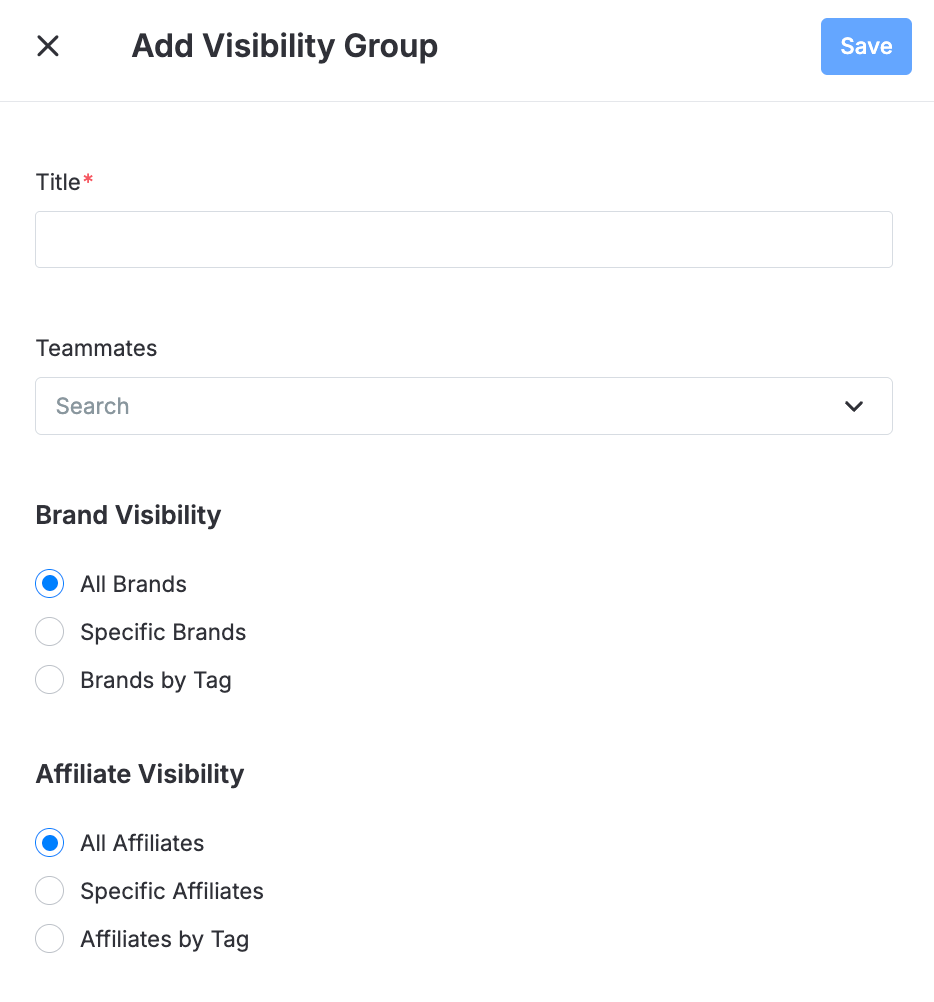
There are two details a buyer should test carefully. First, when a teammate belongs to multiple Visibility Groups, allowed entities are combined. A group for Brand A and another for Brand B gives that teammate both brands. Second, an internal teammate with no Visibility Group assignment falls back to role-based visibility rather than becoming automatically restricted to zero records. For a program using groups as its brand boundary, an unassigned teammate is a provisioning error to catch, not a safe default to assume.
Scaleo documents visibility enforcement in reports and exports, billing, adjustments, Activity Log, dropdowns, filters, bulk actions and API access. Linked records are visible only when the relevant underlying entities are in scope. That is the right set of surfaces to interrogate in a demo. The configuration screen alone cannot tell you whether a particular custom role and group combination meets your policy.
Role, group and partner portal are different questions
Do not use an internal teammate’s Visibility Group to stand in for an affiliate’s own portal entitlement. The partner-facing question is which offers, assets and results an affiliate can access. The internal question is which staff member can view or change that affiliate’s records. Test both paths with separate accounts. A successful Brand A manager test does not establish what an affiliate sees after login.
Run a two-brand access test
Prepare a small dataset before the demo: two brands, three affiliates, one shared affiliate, one campaign per brand, one conversion per campaign and one pending payout adjustment. Use fictional identifiers and amounts. Keep a written expected-result sheet. Real player information is unnecessary. If you are running a broader selection process, add this access case to the 14-day software proof of concept rather than testing permissions in isolation.
- Create a role that can view reports and affiliate records but cannot change permission settings. Assign it to a Brand A test user.
- Give that user a Visibility Group with Brand A and only the affiliates it should manage. Keep Brand B and an unrelated affiliate outside the group.
- Open the affiliate, campaign, conversion and adjustment lists. Try direct record links as well as navigation. Note whether linked Brand B details remain hidden.
- Run the same date-range report as an administrator and the Brand A user. Compare row counts and totals, then export both. A different screen total with an identical CSV would be a failure.
- Try the API with credentials belonging to the restricted user, where that mode of access is supported. Compare one allowed and one disallowed record request.
- Add the user to a second group that grants Brand B. Check that the union is intentional. Remove all group assignments and check the role-only fallback before allowing the account into production.
The point is to test both positive and negative results. A restricted account should see its own work. It should also fail to see records outside its scope, including through a guessed URL or an export created from a broad filter. Record the actual result rather than accepting a vendor statement that permissions are “granular.”
Reports and exports are where leakage becomes expensive
An affiliate manager may never open the other brand’s campaign page. The monthly report is still a risk: a cross-brand total can expose revenue, partner economics or a market launch before that manager is authorized to know it. CSV and XLSX exports can leave the application and circulate by email, so the row-level boundary must be applied before the file is generated.
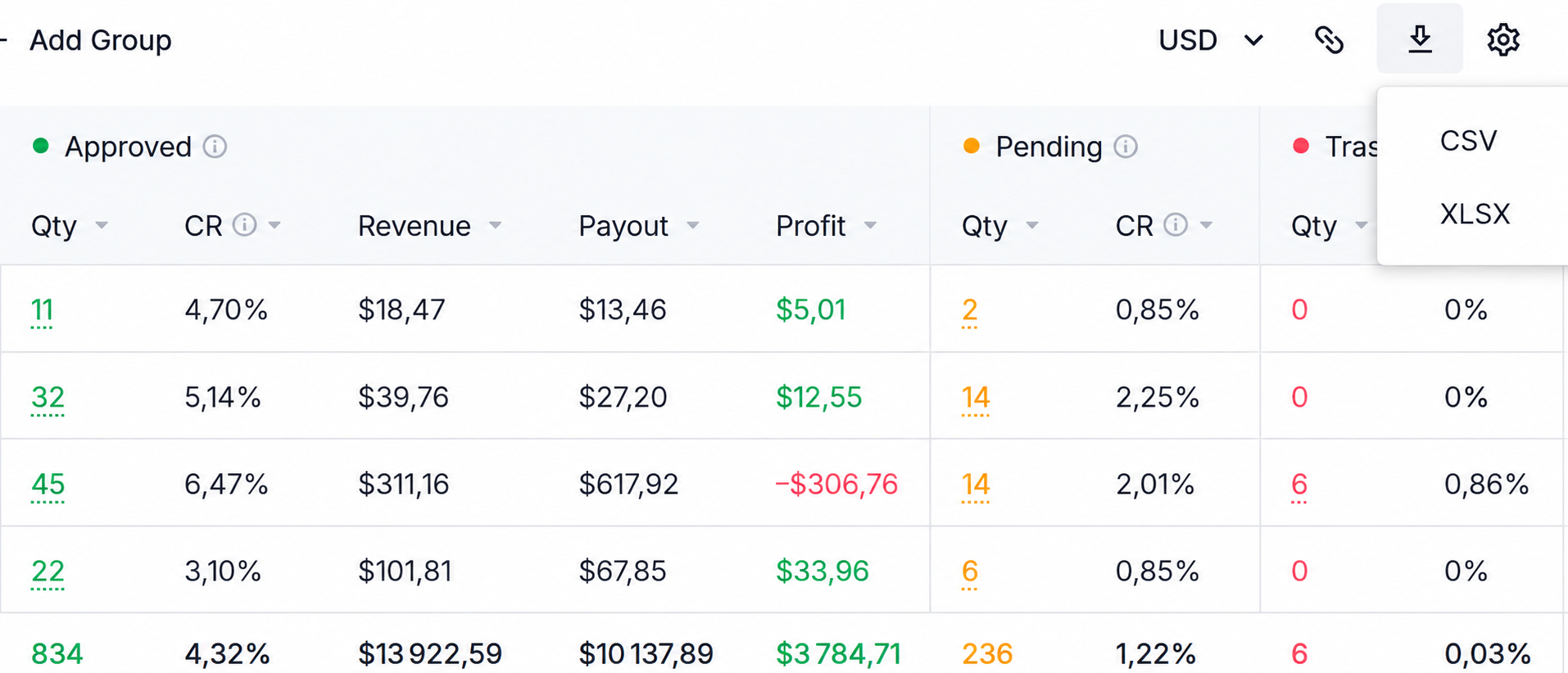
Use a reconciliation sheet with the expected record IDs, brand, affiliate, currency, event status and amount. Compare filtered reports, downloaded files and the payout view. If a shared affiliate has Brand A and Brand B activity, the Brand A manager’s report must answer a precise question: is the affiliate identity visible while Brand B’s financial events remain hidden? An aggregate that silently includes Brand B is just as problematic as an exposed row.
Time boundaries matter too. A Brand B conversion can be adjusted after a Brand A user has already exported a shared-affiliate report. Repeat the test after a late correction, not only with clean sample data. If access changes later, decide whether historical exports remain available and who can regenerate them. Those are procurement questions worth answering before finance relies on the platform for a closed month.
Billing, adjustments and logs need their own checks
A commission adjustment may reference an affiliate visible to the manager and a brand that is not. The adjustment screen, its linked conversion, the partner statement and any notification should all respect the intended boundary. Test the record at each entry point. A protected list view is of little use if a notification opens the excluded line.
Scaleo records Visibility Group creation, editing and deletion in the Activity Log. That helps answer who changed a scope and when. It does not replace a periodic access review. Assign an owner to review staff moves, agency contracts and temporary cross-brand access. The group union rule makes temporary membership especially easy to forget after an incident or launch.
For a new brand, make provisioning part of launch readiness. List the staff who need it, the affiliates that should be visible, the date access starts, and who can approve an exception. Then rerun the negative tests with an account that should not receive the new brand. A launch checklist that tests only the administrator account misses the permission model entirely.
What to ask in an iGaming affiliate software evaluation
Competitors can show role-management screens too. The useful comparison is behavioral: make each vendor run the same data and export test. Ask for the plan tier that supports brand and affiliate scoping, the exact API behavior for restricted users, and a demonstration of union and unassigned-user behavior. Commercial terms matter here because a feature available only on a higher plan changes the effective software requirement.
Give the vendor the matrix above and ask one person to execute it without developer intervention. Watch for where the product requires separate configuration for offers, reports, billing or partner-facing access. Those may be valid design choices, but the handoffs belong in your operating procedure. A polished permission screen is useful only if the rest of the record path follows it.
For Scaleo, request the iGaming Operator or Broker environment and confirm your plan includes Visibility Groups. Set up the two brands and shared affiliate, apply the groups, and inspect the report, export and adjustment output. That is a concrete way to evaluate whether the software fits your organization’s access policy.
Bring your access matrix to the demo.
Ask Scaleo to run your two-brand permission test with a restricted staff account, a shared affiliate and an exported payout report. You will leave with observed behavior to compare against your own policy.
Frequently asked questions
What is the difference between a role and a Visibility Group in Scaleo?
A role controls the actions an internal teammate can perform. A Visibility Group narrows which brand and affiliate entities that teammate can see. The combined result depends on the assigned role and all groups attached to the user.
Are Scaleo Visibility Groups available on every plan?
No. Scaleo’s current documentation lists Visibility Groups for Enterprise and Custom plans. Confirm the entitlement and iGaming platform variant in a sales evaluation before making it a launch requirement.
What happens if a teammate belongs to two Visibility Groups?
The allowed entities are combined. A user assigned to Brand A and Brand B groups can see both, subject to their role permissions. Test temporary memberships and remove them when no longer needed.
Does an unassigned teammate see no brands?
Do not assume that. Scaleo documents that a teammate without a Visibility Group has role-only visibility. Provisioning checks should flag accounts that were meant to be restricted but have no group.
How do we test multi-brand access in affiliate software?
Create two brands, a shared affiliate and sample conversion and payout records. Sign in as a restricted teammate and an administrator. Compare lists, direct record links, reports, CSV or XLSX exports, billing, adjustments and API results against a written access matrix.
Do staff Visibility Groups control what affiliates see in their own portal?
They address internal teammate visibility. Affiliate-facing offer and portal access must be configured and tested separately with an affiliate account.